Two-Factor Authentication (MFA) Setup
Two-Factor Authentication (MFA: Multi-Factor Authentication) is a security feature that requires a 6-digit one-time code from an authenticator app in addition to your password when signing in. Even if your password is compromised, MFA prevents unauthorized access to your account.
This feature is for specific enterprise users only.
It is not available to general users. MFA is only enabled when R.Design configures it on the backend for designated users based on their organization’s security requirements. We cannot honor individual requests to enable or disable MFA on personal accounts.
Once configured, designated users will see the “Mobile Authenticator Setup” screen at their next login. Follow this guide to complete the setup.
1. Prepare Your Authenticator App
To use MFA, install a TOTP (Time-based One-Time Password) compatible authenticator app on your smartphone. We recommend one of the following:
| App | Features | Download |
|---|---|---|
| Google Authenticator | Most widely used. Simple and easy to use | iOS / Android |
| Microsoft Authenticator | Popular for enterprise use. Supports cloud backup | iOS / Android |
| Authy | Supports multi-device sync. Easy device migration | Official site |
| 1Password / Bitwarden | Built-in TOTP feature in password managers | Official sites |
| FreeOTP | Open source | iOS / Android |
Recommended: For first-time users, we recommend Google Authenticator or Microsoft Authenticator. Although FreeOTP appears first on the Keycloak screen, we recommend Google/Microsoft for better recognition and support.
Note When Using Microsoft Authenticator ⚠️
When you scan a QR code with Microsoft Authenticator, you may see a prompt asking “Do you want to register a Microsoft account?”. This attempts to start Microsoft’s native account linking mode instead of Keycloak’s TOTP, and proceeding will cause registration to fail.
Correct procedure:
- Tap “Add account” in Microsoft Authenticator
- Select “Other account (Google, Facebook, etc.)” — not “Microsoft account” or “Work or school account”
- Then scan the QR code
This will correctly register as a standard TOTP.
2. Initial Setup
The first time you are designated for MFA, the following screen will appear at your next login.
Steps
- Enter your ID and password to sign in
- The “Mobile Authenticator Setup” screen will appear
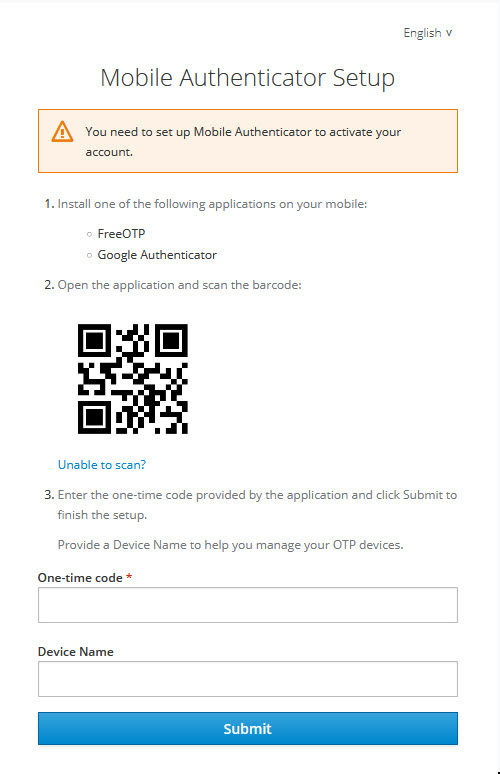
- Open the authenticator app on your smartphone and scan the QR code
- The app will display a 6-digit code
- Enter the 6-digit code in the “One-time code” field
- Enter a recognizable name in the “Device Name” field (e.g.,
iPhone-my)- This helps identify the device when using multiple devices
- Click “Submit”
- Login is complete
If You Cannot Scan the QR Code
Click the “Unable to scan?” link on the screen to display a manual entry string. Select “Enter manually” in your authenticator app and input this string.
3. Logging In After Initial Setup
Once initial setup is complete, login follows this flow:
- Enter your ID and password
- Open the authenticator app and check the 6-digit code
- Enter the code to complete login
Codes refresh every 30 seconds. If the code changes while you’re entering it, enter the new code.
4. Managing Your Settings (Account Console)
You can view and change MFA settings through the Account Console.
Access URL
Visit the following URL:
https://auth.r.design/auth/realms/r.design/account/#/security/signinginIn the “Two-Factor Authentication” section under “Authenticator Application”, you can perform the following operations:
| Operation | Purpose |
|---|---|
| Update | Overwrite the existing setup and register a new device (for device changes) |
| Remove | Delete the TOTP registration |
Even if you Remove the TOTP, the QR code screen will appear again at the next login if MFA is required by your organization’s security policy. This is intentional design to prevent accidental MFA removal. To completely disable MFA, please contact your administrator.
5. FAQ
Q. I entered the 6-digit code but it says “Invalid code”
Most common cause: Smartphone time drift
TOTP is time-based, so if your smartphone’s clock is off by more than a few seconds, the code won’t match.
Solution:
- Set your smartphone’s time to “Set automatically”
- For Google Authenticator: App menu (top right) → “Settings” → “Time correction for codes” → “Sync now”
Q. I plan to change my device
Steps:
- While you can still use your old device, access the Account Console (URL above)
- Click Update under
Authenticator Application - Scan the QR code with the authenticator app on your new device
- Verify that the new code authenticates successfully
If your old device is no longer accessible, contact your administrator to reset the TOTP.
Q. I lost my smartphone
Please contact your administrator. They will reset your TOTP so you can set it up on a new device.
Contact: Contact Us
Q. I want to use MFA on multiple devices
- Authy supports multi-device sync
- 1Password / Bitwarden sync across all devices through the password manager
- Google Authenticator has a device transfer feature but does not officially support simultaneous use on multiple devices
Q. I want to disable MFA
If MFA is required by your organization’s security policy, you cannot disable it yourself. Please check with your administrator for details.